> ## Documentation Index
> Fetch the complete documentation index at: https://docs.protectorplus.cloudsine.tech/llms.txt
> Use this file to discover all available pages before exploring further.
# Security Profiles
> Bind GenAI applications to packaged guardrail configurations.
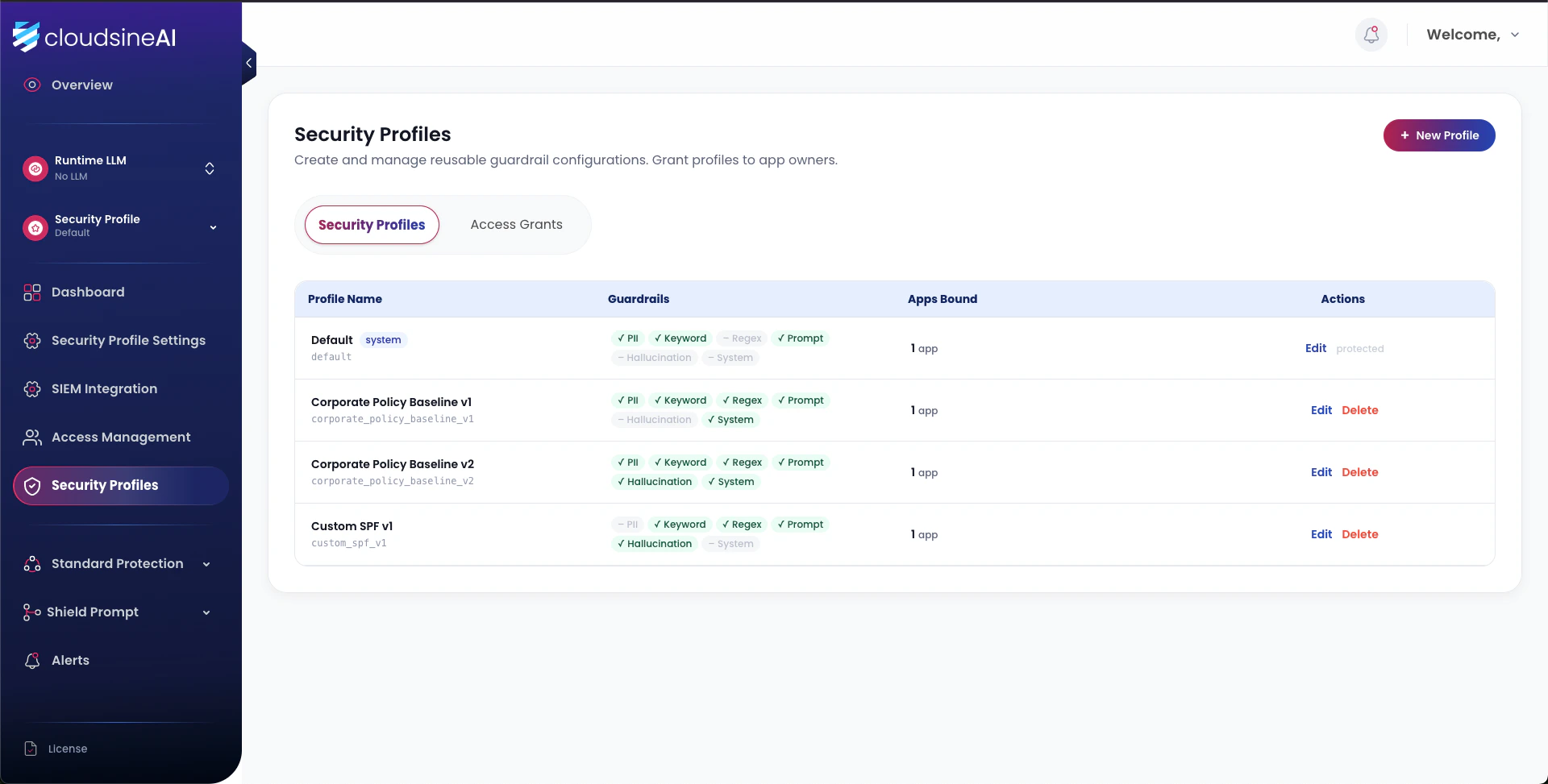
A **security profile** is a packaged set of guardrail configurations that Protector Plus applies when evaluating prompts and responses. Each GenAI application is bound to a security profile — multiple applications can share a profile, or each can have its own.
 ## Create a profile
Dashboard → **Security Profiles** → **Create Security Profile**.
See sections below for mode details.
Fill in the profile name, LLM backend settings, and deployment mode settings (see tables below).
The security profile is created and ready to be bound to applications.
## Forwarding mode
The GenAI application points its LLM endpoint at the Protector Plus FQDN. Protector Plus applies the security profile bound to the FQDN before forwarding to the origin LLM.
| Setting | Description |
| ------------------------ | --------------------------------------------------------------------------- |
| Profile Name | Unique name for this security profile. |
| LLM Endpoint FQDN | Valid FQDN unique to the GenAI application. Must resolve to Protector Plus. |
| Origin Server IP | IP address of the LLM endpoint. |
| Origin Protocol | Protocol type of the LLM endpoint (HTTP / HTTPS). |
| Origin Protocol TCP port | Port number of the LLM endpoint. |
| LLM Block Message | Message returned to the GenAI app on harmful-prompt detection. |
Assign one **FQDN per GenAI application** — this is how Protector Plus distinguishes which security profile to apply.
## Non-forwarding mode
The application calls Protector Plus directly using an org-wide API key and App ID. No FQDN is required. The application makes the final allow/deny decision based on the risk score returned by Protector Plus.
| Setting | Description |
| ------------------------ | ------------------------------------------------------------------------------------- |
| Profile Name | Unique name for this security profile. |
| Pseudo-URL | Internal identifier (e.g., `appname.pseudo-domain.local`). Not a resolvable DNS name. |
| Origin Server IP | `127.0.0.1` |
| Origin Protocol | HTTP |
| Origin Protocol TCP port | 80 |
| LLM Block Message | `default` |
### Setting up authentication for Non-forwarding mode
Navigate to **Org Settings** → Click **Generate** to create your organization-wide API key. Store it securely — it is shown only once.
Navigate to **Apps** → **Register App**.
Fill in:
* **App Name**: Human-readable name (e.g., "Customer Support Bot")
* **App ID**: Unique identifier (e.g., `support-bot`)
* **Security Profile**: Select the security profile you created
Save and note your App ID.
Include both `X-API-Key` (org-wide key) and `X-App-ID` (your app's ID) in all API requests. See [Authentication](/api-reference/authentication) for details.
Multiple applications can share the same security profile. Simply register additional apps and bind them to the same profile.
## Per-application isolation in practice
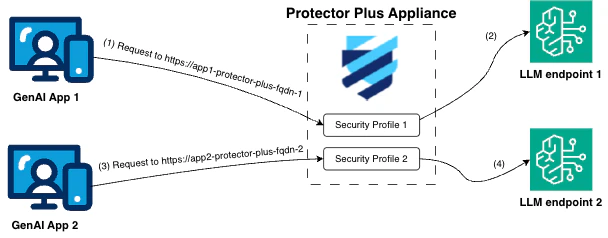
The diagram below shows two GenAI applications bound to two separate security profiles on the same Protector Plus instance. Each application is routed via a unique FQDN; Protector Plus applies the bound profile before forwarding to the corresponding LLM endpoint.
## Create a profile
Dashboard → **Security Profiles** → **Create Security Profile**.
See sections below for mode details.
Fill in the profile name, LLM backend settings, and deployment mode settings (see tables below).
The security profile is created and ready to be bound to applications.
## Forwarding mode
The GenAI application points its LLM endpoint at the Protector Plus FQDN. Protector Plus applies the security profile bound to the FQDN before forwarding to the origin LLM.
| Setting | Description |
| ------------------------ | --------------------------------------------------------------------------- |
| Profile Name | Unique name for this security profile. |
| LLM Endpoint FQDN | Valid FQDN unique to the GenAI application. Must resolve to Protector Plus. |
| Origin Server IP | IP address of the LLM endpoint. |
| Origin Protocol | Protocol type of the LLM endpoint (HTTP / HTTPS). |
| Origin Protocol TCP port | Port number of the LLM endpoint. |
| LLM Block Message | Message returned to the GenAI app on harmful-prompt detection. |
Assign one **FQDN per GenAI application** — this is how Protector Plus distinguishes which security profile to apply.
## Non-forwarding mode
The application calls Protector Plus directly using an org-wide API key and App ID. No FQDN is required. The application makes the final allow/deny decision based on the risk score returned by Protector Plus.
| Setting | Description |
| ------------------------ | ------------------------------------------------------------------------------------- |
| Profile Name | Unique name for this security profile. |
| Pseudo-URL | Internal identifier (e.g., `appname.pseudo-domain.local`). Not a resolvable DNS name. |
| Origin Server IP | `127.0.0.1` |
| Origin Protocol | HTTP |
| Origin Protocol TCP port | 80 |
| LLM Block Message | `default` |
### Setting up authentication for Non-forwarding mode
Navigate to **Org Settings** → Click **Generate** to create your organization-wide API key. Store it securely — it is shown only once.
Navigate to **Apps** → **Register App**.
Fill in:
* **App Name**: Human-readable name (e.g., "Customer Support Bot")
* **App ID**: Unique identifier (e.g., `support-bot`)
* **Security Profile**: Select the security profile you created
Save and note your App ID.
Include both `X-API-Key` (org-wide key) and `X-App-ID` (your app's ID) in all API requests. See [Authentication](/api-reference/authentication) for details.
Multiple applications can share the same security profile. Simply register additional apps and bind them to the same profile.
## Per-application isolation in practice
The diagram below shows two GenAI applications bound to two separate security profiles on the same Protector Plus instance. Each application is routed via a unique FQDN; Protector Plus applies the bound profile before forwarding to the corresponding LLM endpoint.
 Use per-application isolation to:
Apply stricter PII rules to customer-facing applications handling SG NRIC/FIN.
Tune prompt-injection thresholds higher for apps wired to sensitive tools.
Run research apps with minimal guardrails in Monitor mode without blocking.
Assign different profiles per tenant in shared-platform deployments.
## Managing profiles
### Viewing profile details
Navigate to **Security Profiles** in the dashboard sidebar to view all profiles. Click on a profile to view and configure its guardrail settings.
### Editing a profile
1. Navigate to **Security Profiles**
2. Click on the profile you want to edit
3. Modify guardrail settings, thresholds, or backend configurations
4. Click **Save** to apply changes
### Viewing apps using a profile
On the Security Profile detail page, you can see which applications are currently bound to that profile.
### Removing a profile
1. Navigate to **Security Profiles**
2. Click on the profile you want to remove
3. Click **Delete**
4. Confirm deletion
You cannot delete a profile that has active applications bound to it. Unbind all apps first, then delete the profile.
## Profile administration is Super-Admin only
Security profile creation and deletion is restricted to Super Admin users. App-bound users cannot modify security profiles — see [Account Management](/user-guide/account-management) for the full access matrix.
Use per-application isolation to:
Apply stricter PII rules to customer-facing applications handling SG NRIC/FIN.
Tune prompt-injection thresholds higher for apps wired to sensitive tools.
Run research apps with minimal guardrails in Monitor mode without blocking.
Assign different profiles per tenant in shared-platform deployments.
## Managing profiles
### Viewing profile details
Navigate to **Security Profiles** in the dashboard sidebar to view all profiles. Click on a profile to view and configure its guardrail settings.
### Editing a profile
1. Navigate to **Security Profiles**
2. Click on the profile you want to edit
3. Modify guardrail settings, thresholds, or backend configurations
4. Click **Save** to apply changes
### Viewing apps using a profile
On the Security Profile detail page, you can see which applications are currently bound to that profile.
### Removing a profile
1. Navigate to **Security Profiles**
2. Click on the profile you want to remove
3. Click **Delete**
4. Confirm deletion
You cannot delete a profile that has active applications bound to it. Unbind all apps first, then delete the profile.
## Profile administration is Super-Admin only
Security profile creation and deletion is restricted to Super Admin users. App-bound users cannot modify security profiles — see [Account Management](/user-guide/account-management) for the full access matrix.